

Updating the app
Budget Planner checks for a newer version when you open it, and after that at most once an hour: when you come back to its window, or on the hour while it stays open.
The update banner
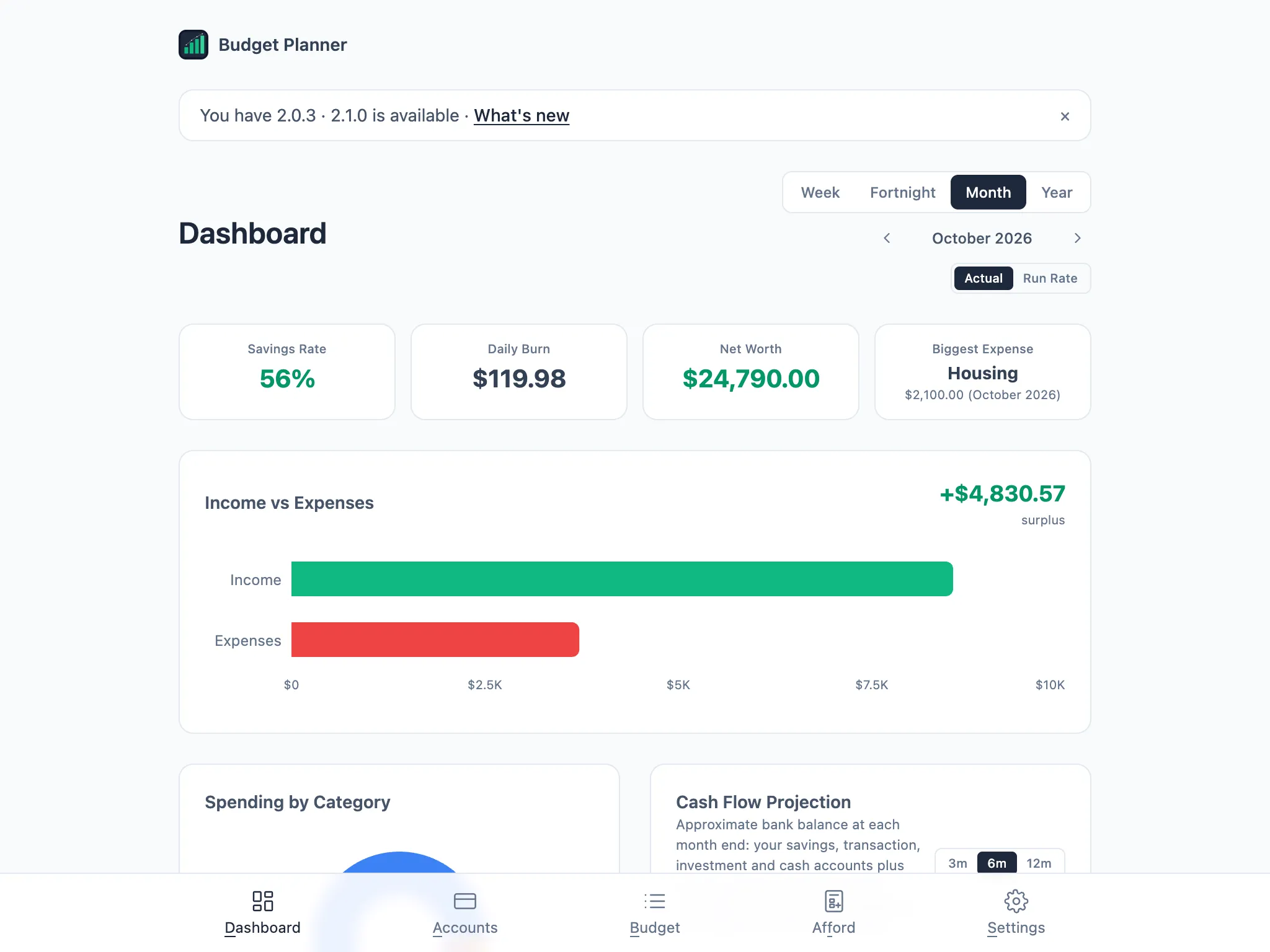
Section titled “The update banner”When a newer version is available, a banner appears at the top of every page: “You have [version] · [version] is available”, with a What’s new link to the changelog. Dismiss it with the × and it won’t show again for that version. A quiet note stays in Settings, though, so it isn’t forgotten.
Check for updates
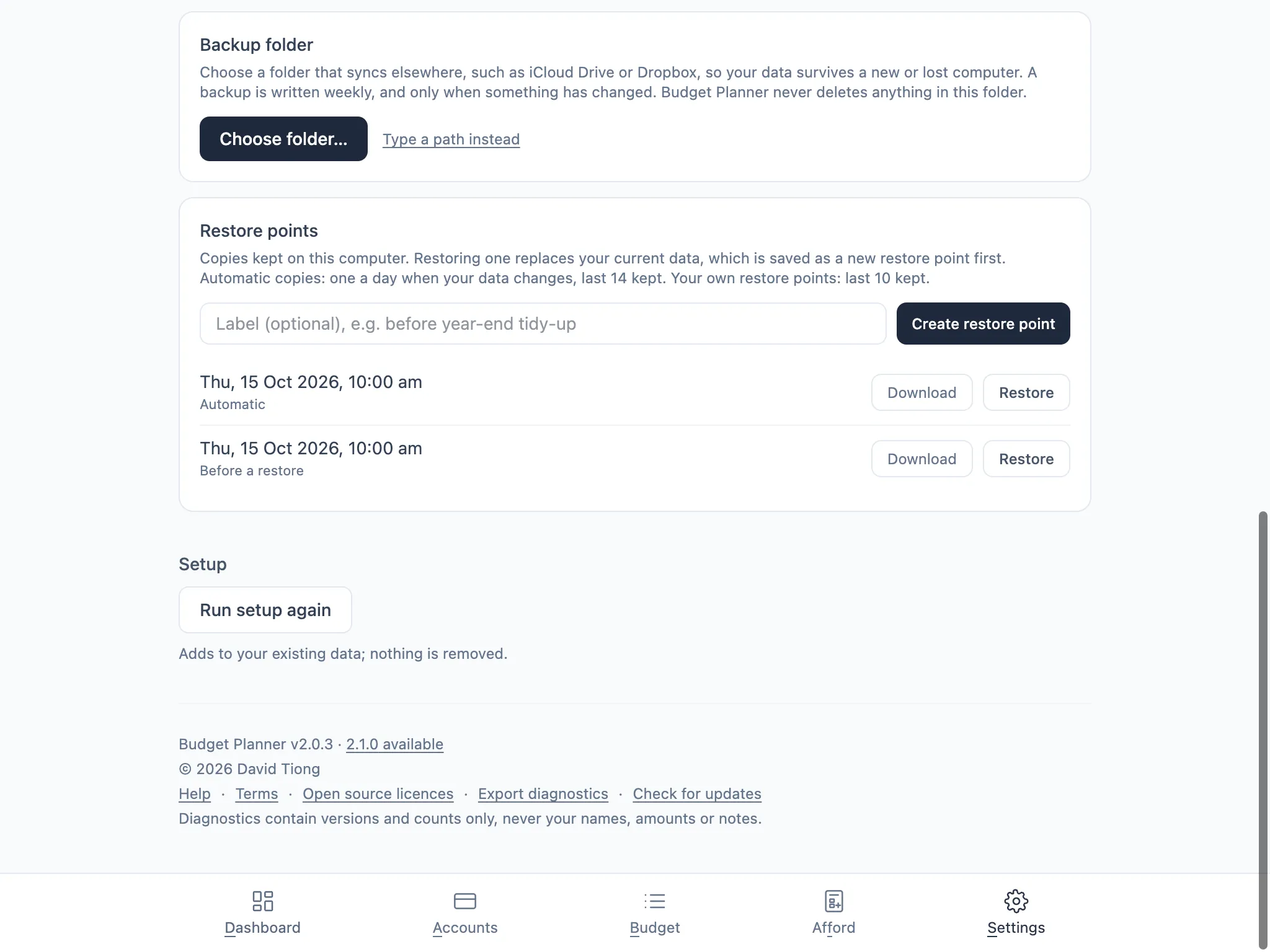
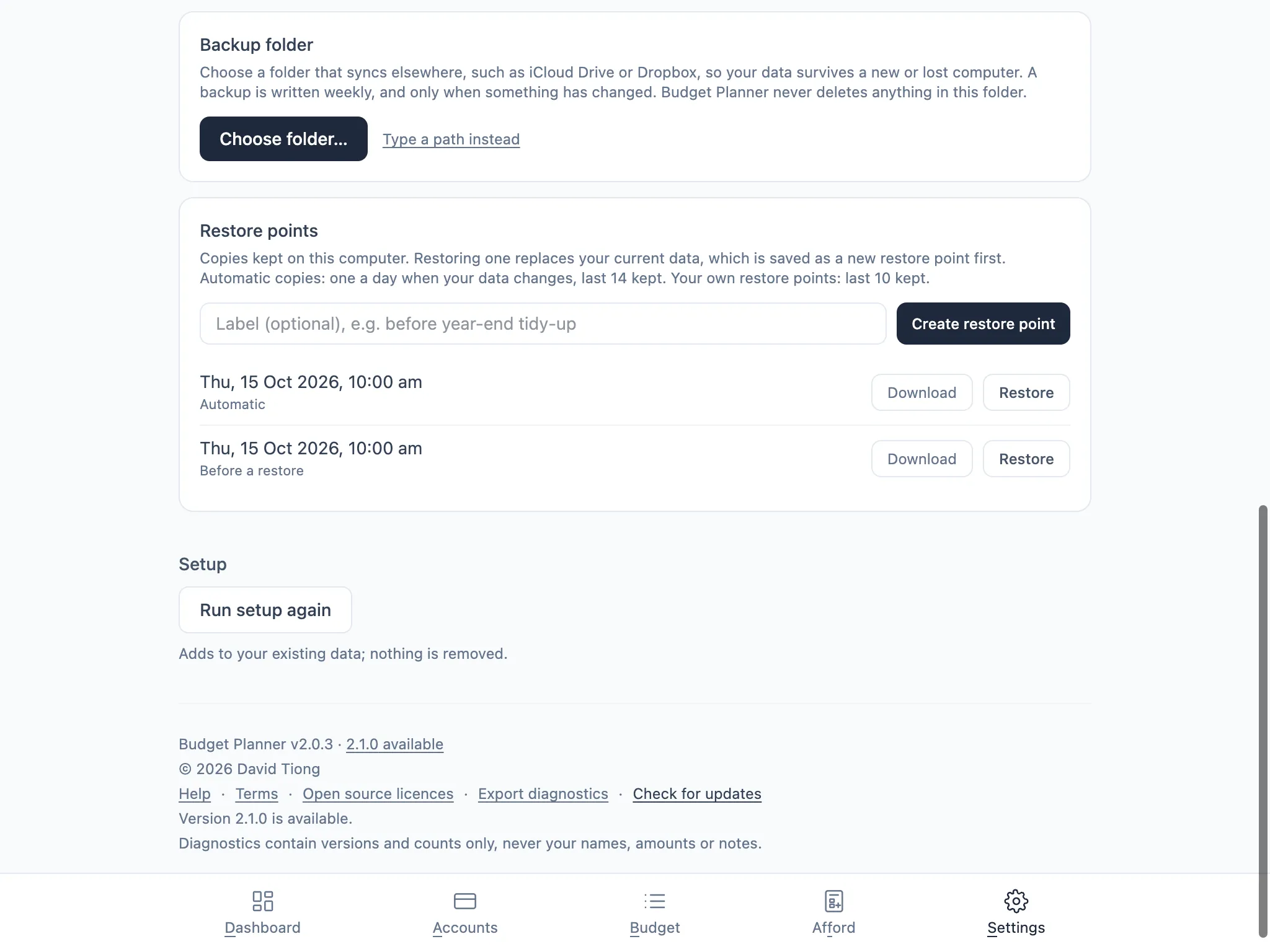
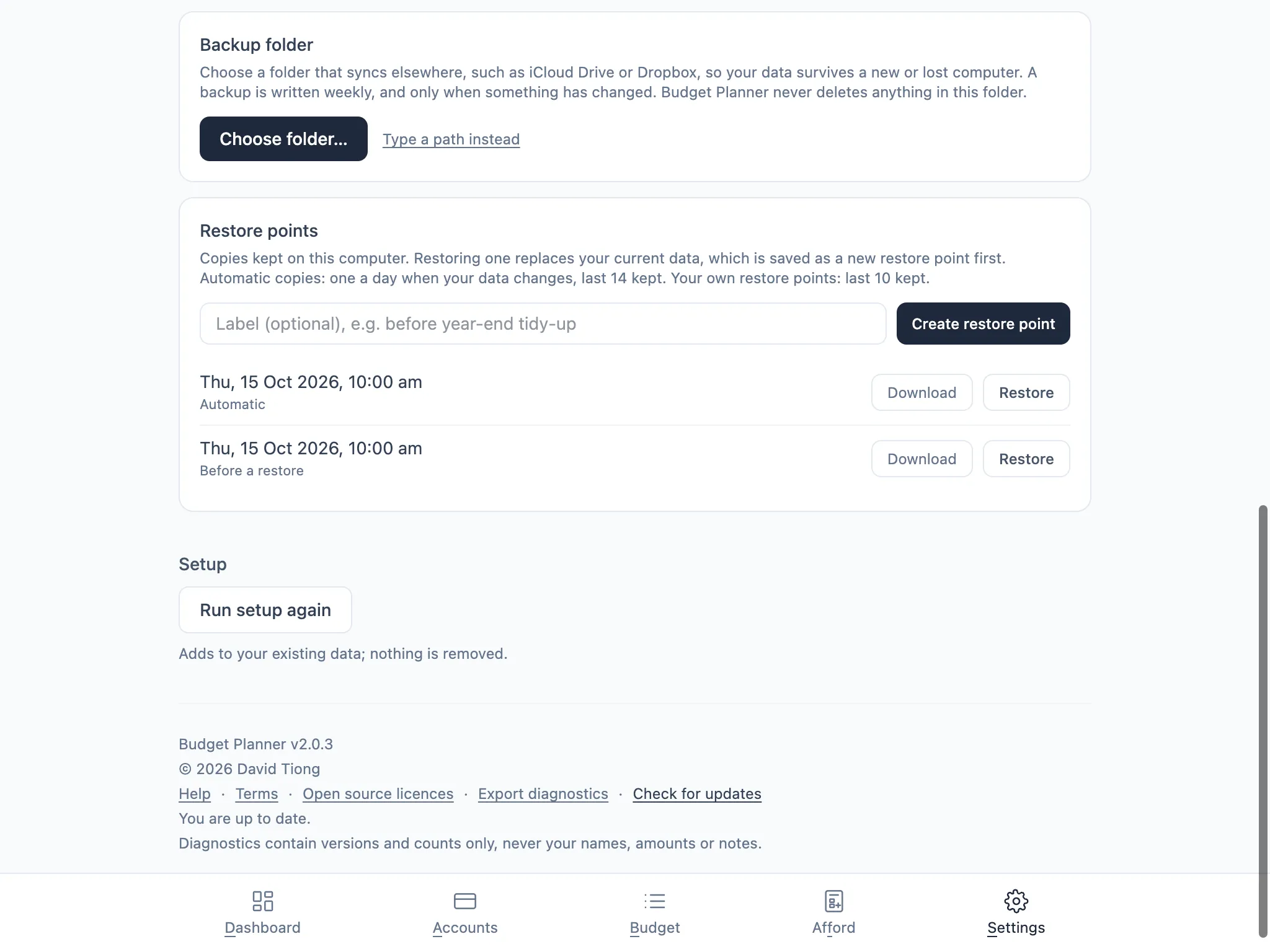
Section titled “Check for updates”Settings carries the running version too, and once a newer one shows up, a link to it: “Budget Planner v[version] · [version] available”. Choose Check for updates at the bottom of Settings to check right away, rather than wait for the next automatic check; it tells you either that a version is available, or that you’re up to date.
Installing over the old version
Section titled “Installing over the old version”Download the new version from the same place you got the app, then drag it into Applications and replace the old copy when asked. Your data doesn’t live inside the app itself, so it stays exactly as it is: the new version opens straight into your existing accounts, budget and scenarios.