
Affordability
The Affordability page has three tabs: Loan Calculator, Scenario Builder and Saved Scenarios.
Loan Calculator
Section titled “Loan Calculator”Enter a Purchase Price, Deposit, Interest Rate and Term, and choose how often you’d repay: weekly, fortnightly or monthly. Budget Planner works out the Repayment, Total Interest, Total Cost and LVR (loan-to-value ratio). It then compares the repayment with your current surplus and calls the result Comfortably Affordable, Tight but Possible or Not Affordable.
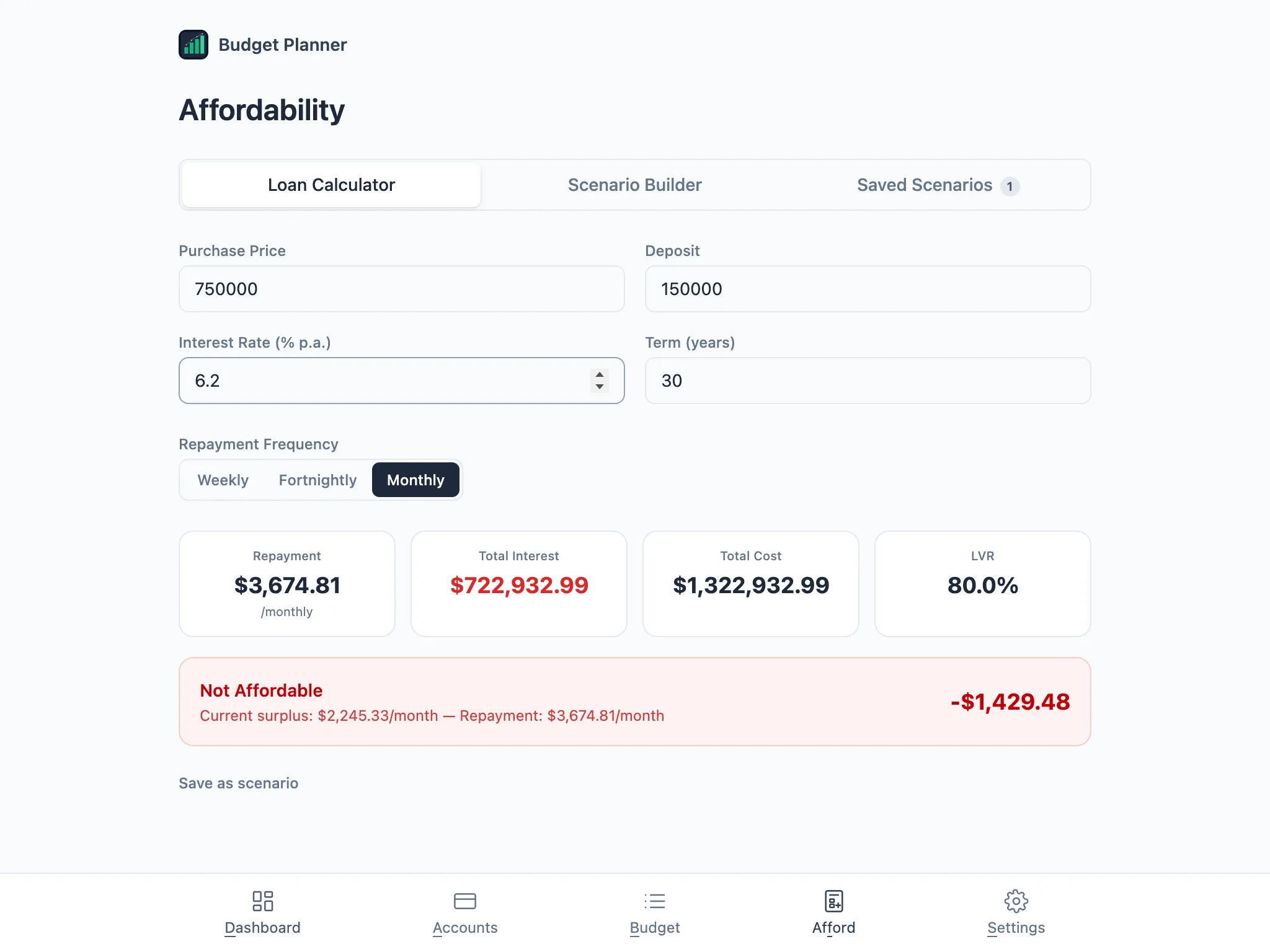
Choose Save as scenario to keep these numbers and compare them on the Saved Scenarios tab.
Scenario Builder and paying upfront
Section titled “Scenario Builder and paying upfront”A scenario can go further than a loan on its own: add income or expenses that would stop, new recurring costs, and one-off costs like application fees or moving costs. As soon as anything is needed upfront, a Paying upfront panel appears, listing your savings, transaction, cash and investment accounts so you can tick which ones would pay for it. It uses each account’s current balance, so update them first if they’re out of date (see Accounts and balances).
The panel keeps your emergency buffer aside unless you set a different amount just for this scenario, and can subtract what you owe on credit cards with the Subtract credit card balances owing checkbox. Add a date under When do you need it? to see whether you’d have the money by then, based on your current budget.
Saved Scenarios
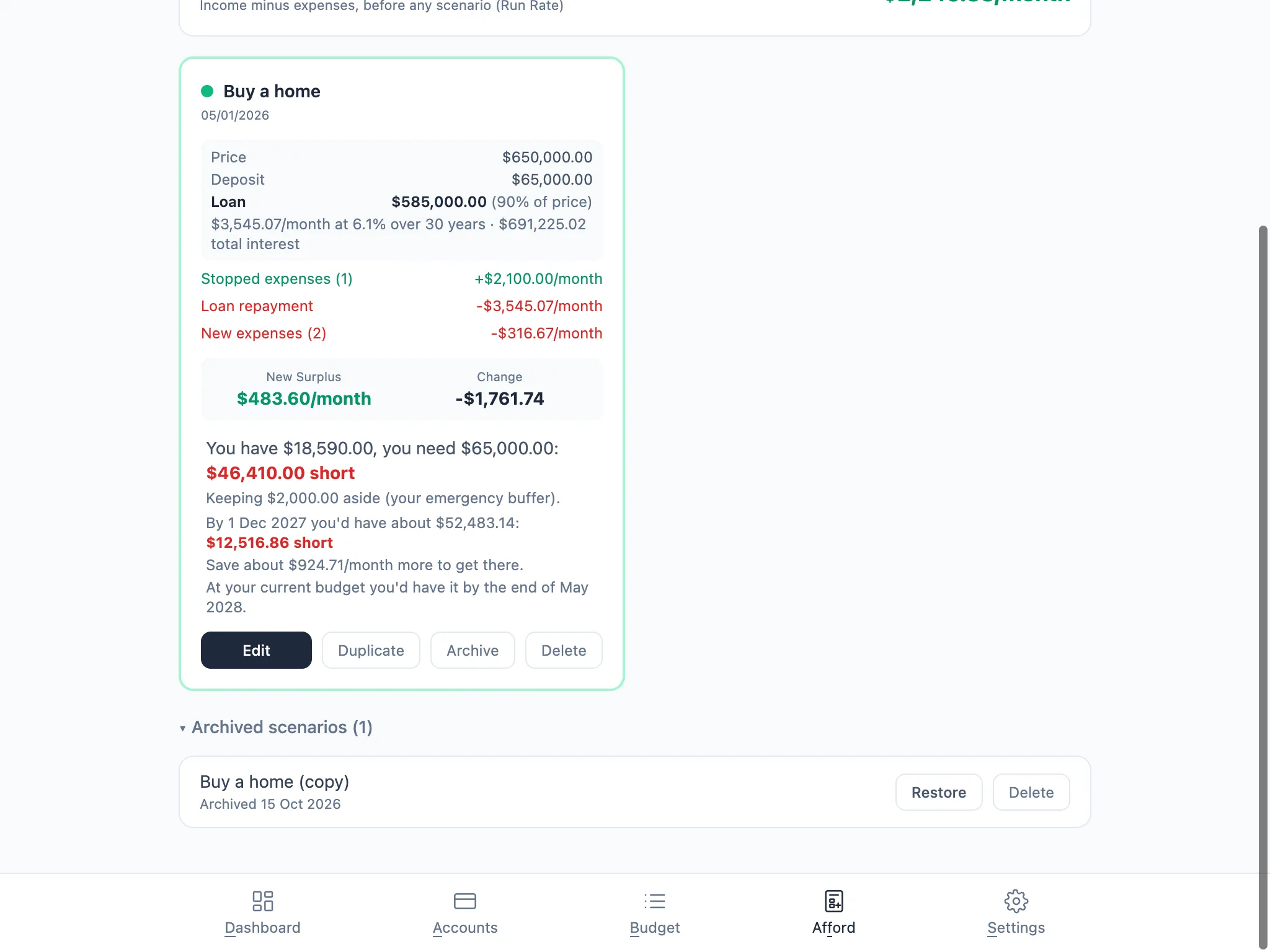
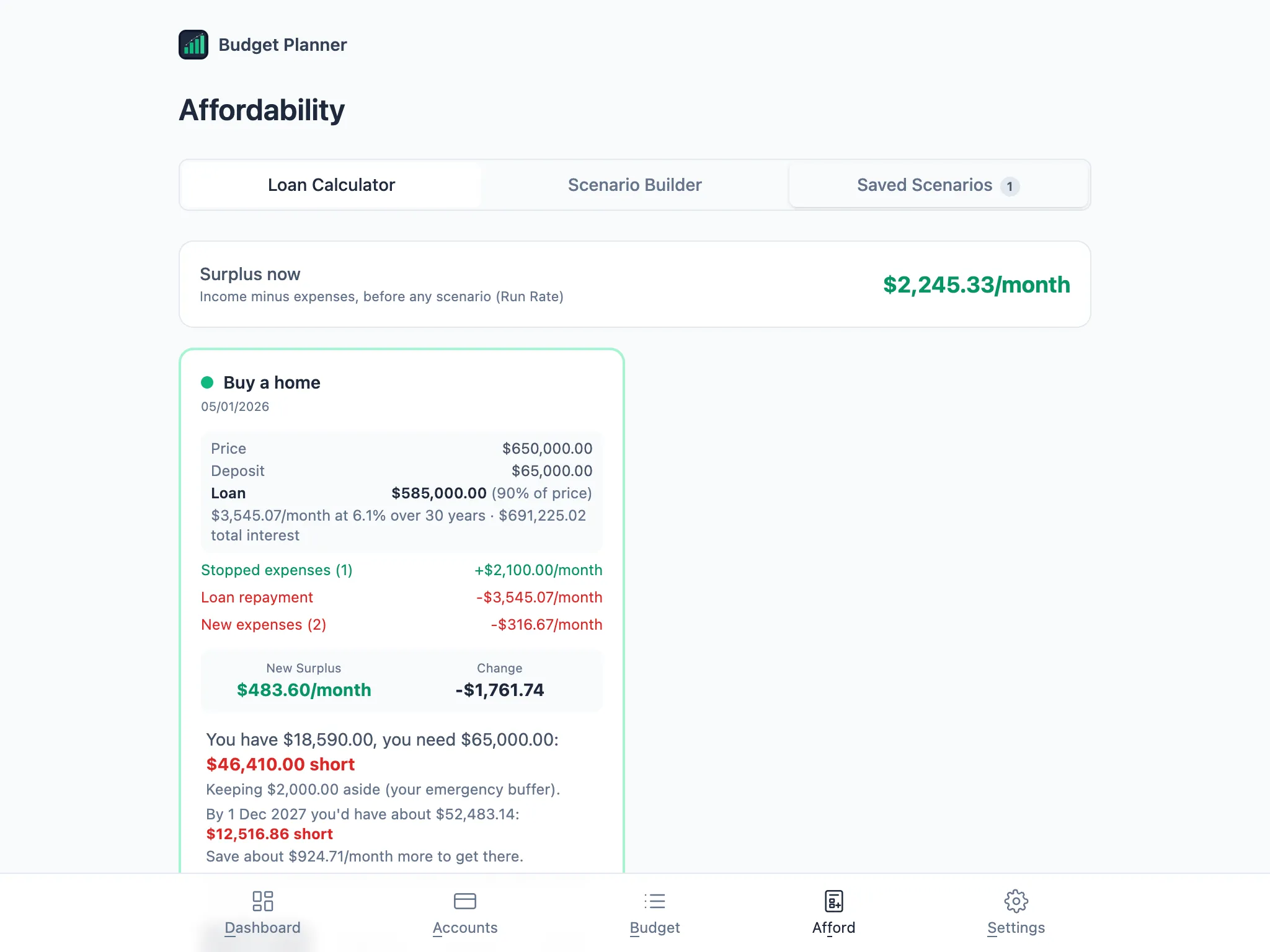
Section titled “Saved Scenarios”Each saved scenario shows its loan details (if any), the budget items that would stop or start, and the new surplus. Below that, the same cash check tells you what you have, what you need, and whether you’re short or have some to spare. It also tells you when: either “By [date] you’d have about…” when you’ve set a target date, or the month your current budget would get you there.
Duplicate and archive
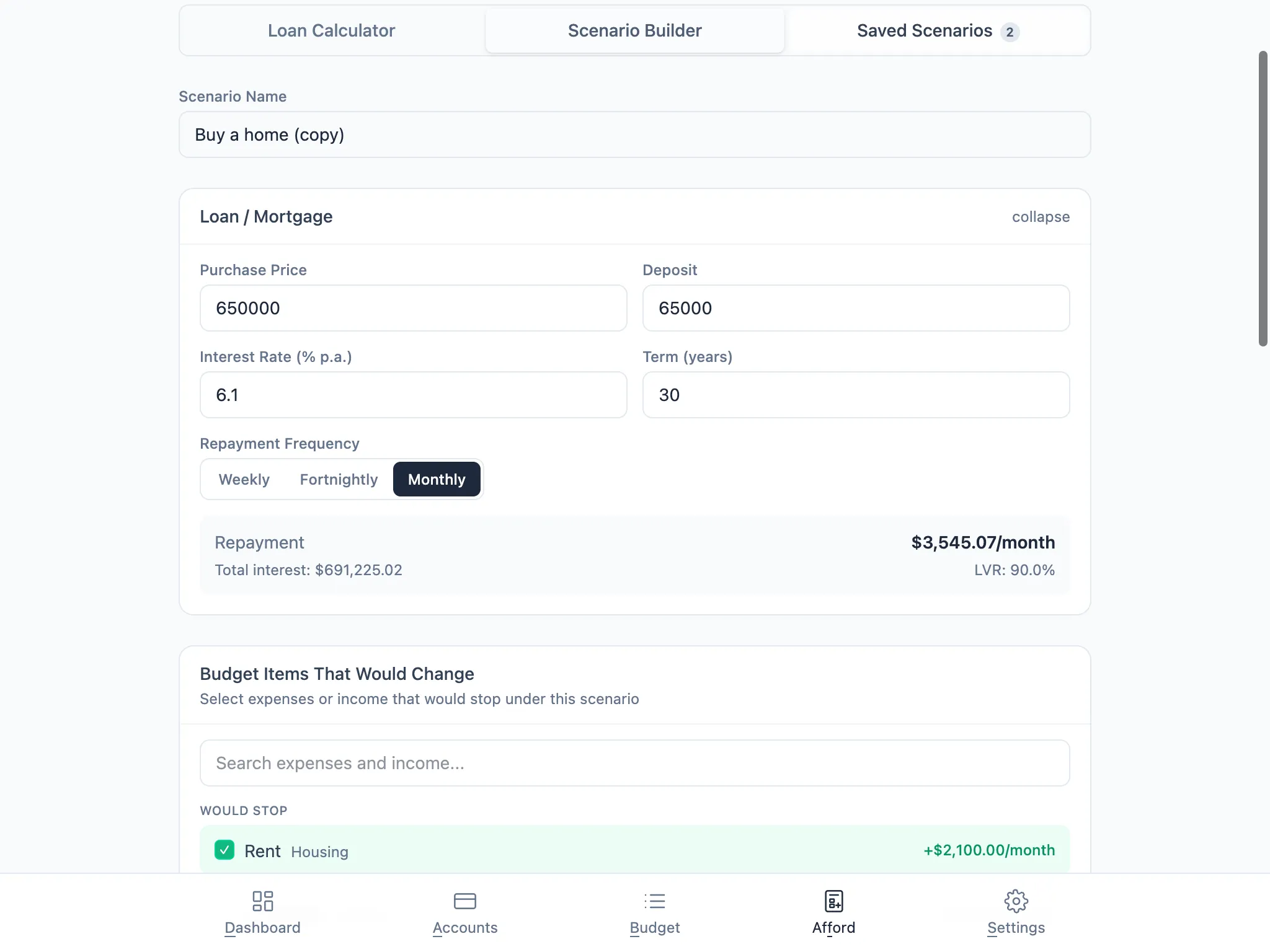
Section titled “Duplicate and archive”Choose Duplicate to copy a scenario, including its accounts and settings, as “[name] (copy)”, and open the copy for editing straight away. It’s the quick way to compare a different price, lender or deposit without rebuilding a scenario from scratch.
Archive sets a scenario aside without deleting it: it drops off the active list and sits under Archived scenarios, where you can Restore it at any time. Delete removes a scenario for good.