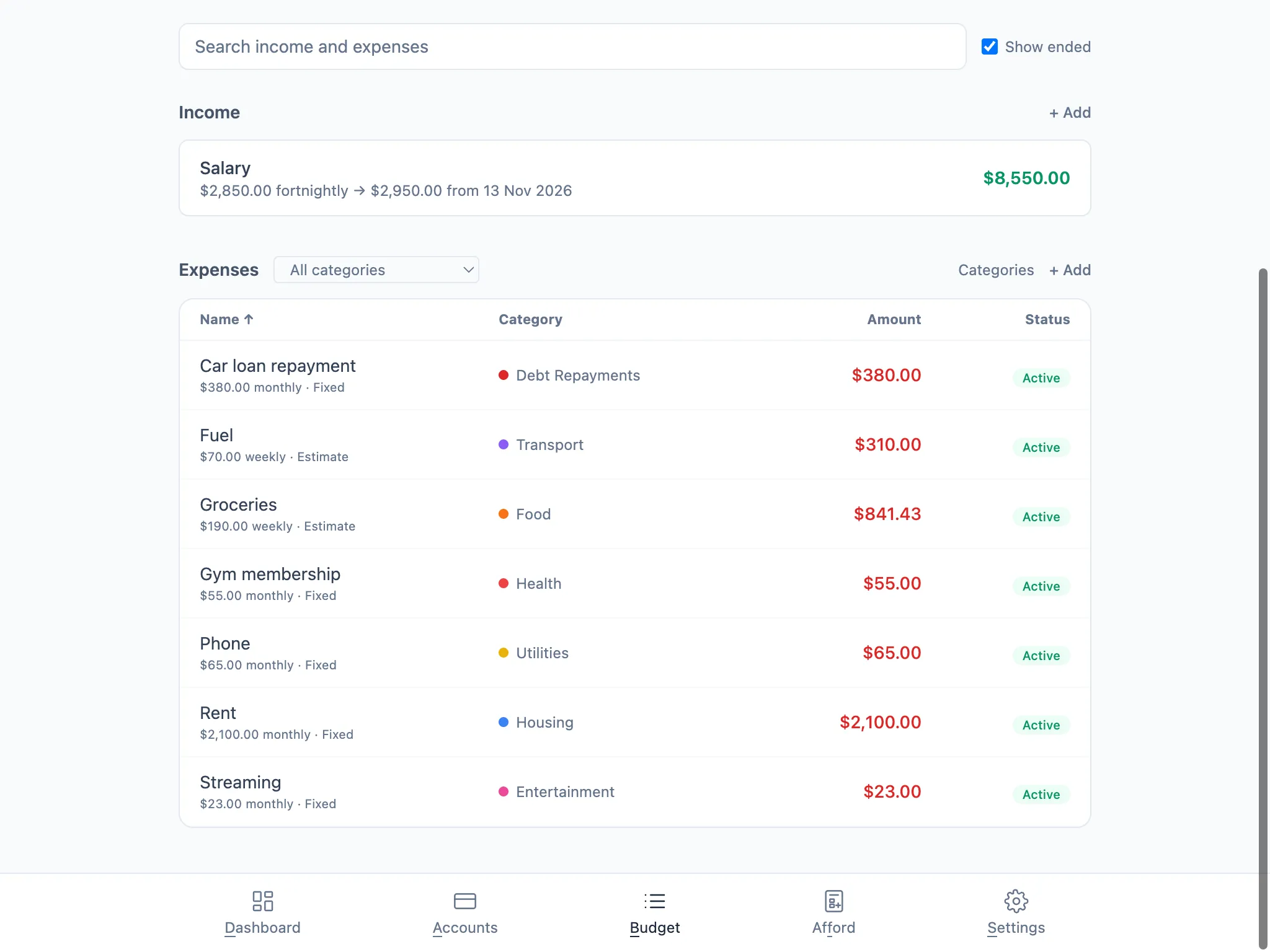

Finding things
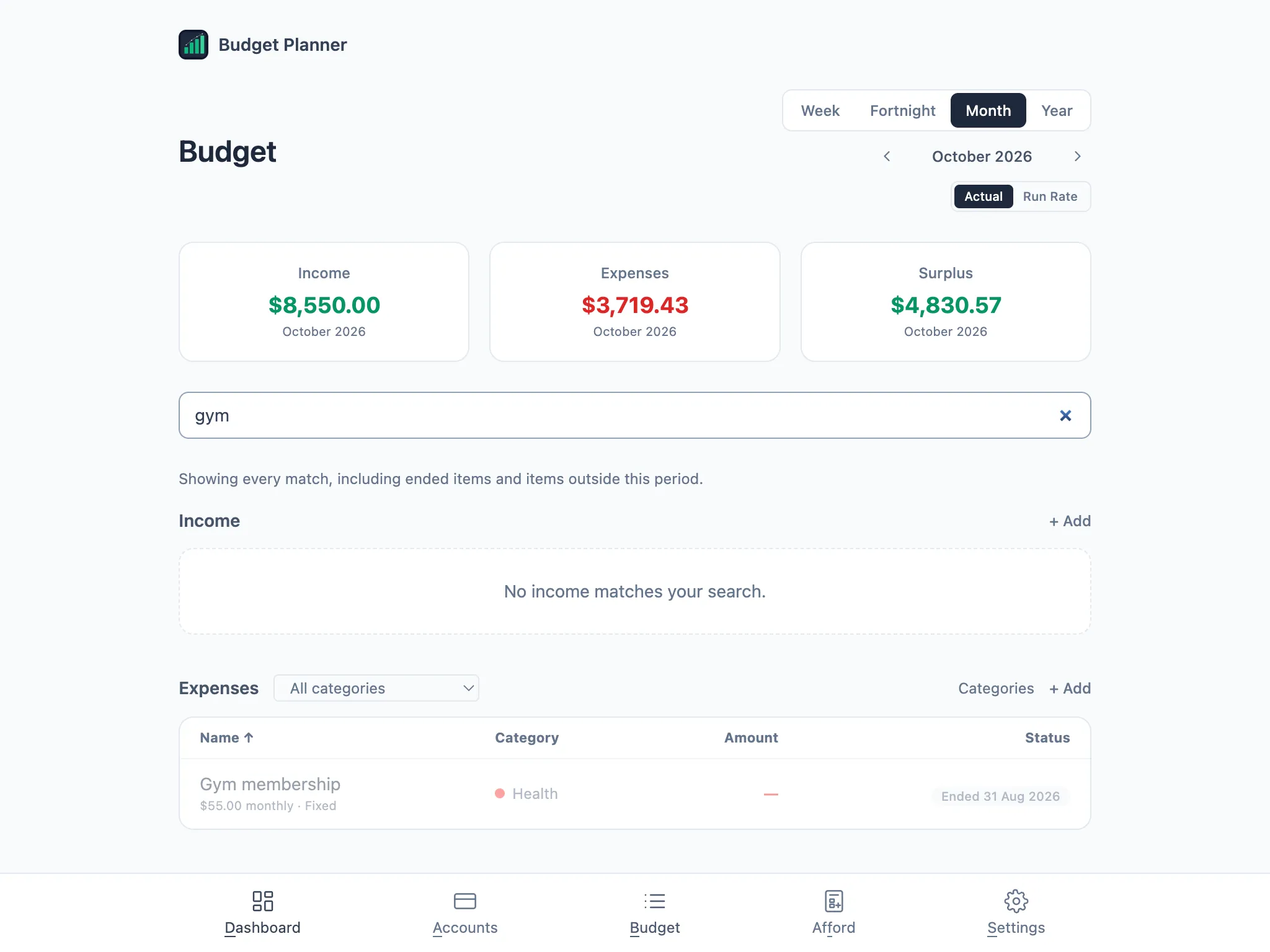
The Budget page’s search box looks across everything: every income and expense, every period, ended items included. It’s built to answer “do I still pay for this?”, so it doesn’t limit itself to what’s on screen.
Type a name, category or subcategory into Search income and expenses. Matches appear whatever period you’re currently viewing, with a note that it’s showing every match, including ended items and items outside this period.
Show ended
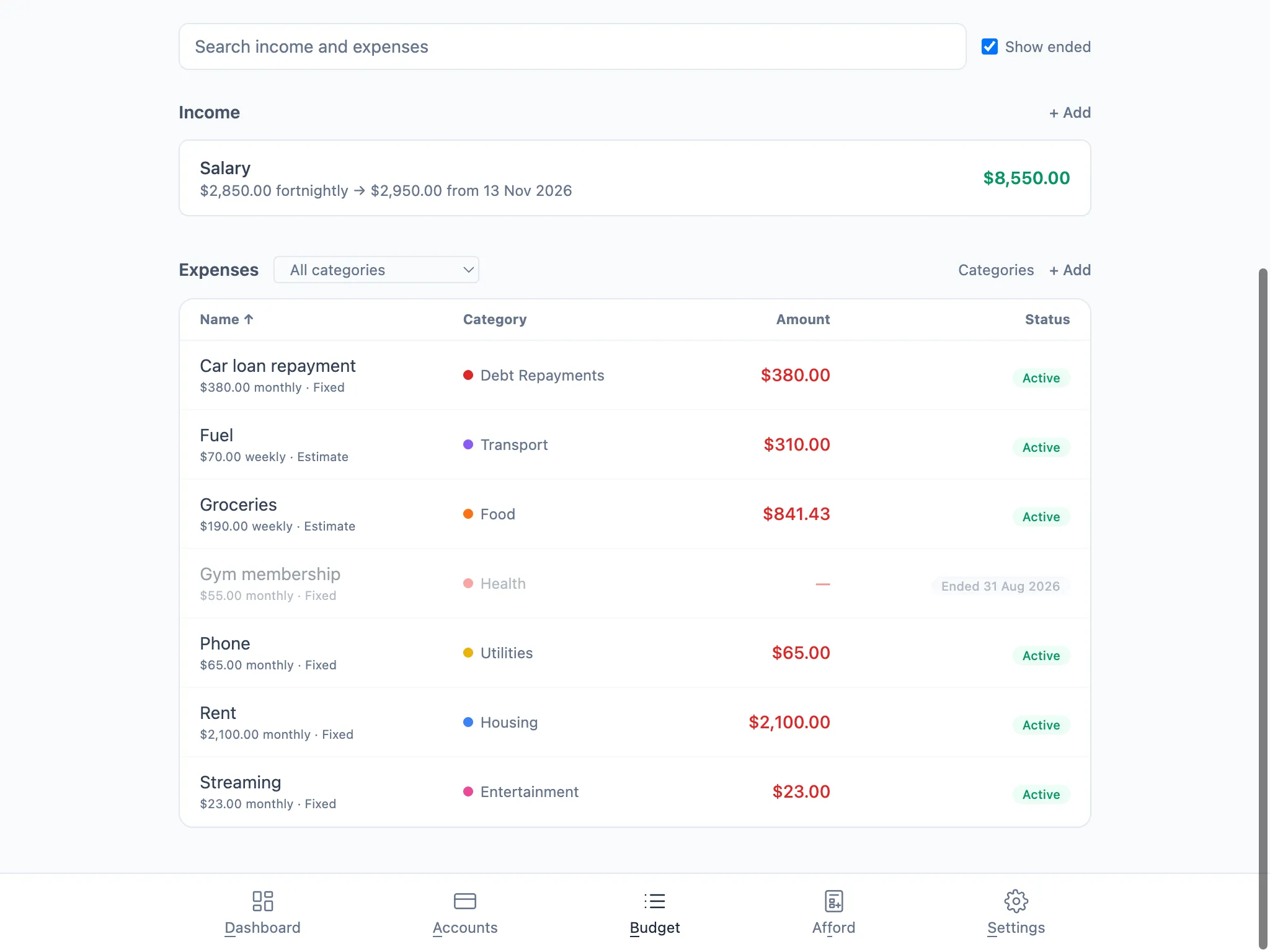
Section titled “Show ended”Clear the search and you’re back to the current period. Tick Show ended next to the search box to add ended items back into that period’s list without searching for them by name. An ended item appears faded, with a dash instead of an amount and an “Ended” label showing its last payment date.
Restarting something ended by mistake
Section titled “Restarting something ended by mistake”If you end an income or expense by accident, open it (search for it, or tick Show ended and click its row) and clear its Last payment by date. Saving with that field empty makes it active again, from its original first payment date onwards.